Integrating Stripe with your microsite
You can collect payments straight into your Stripe account by integrating it with your microsite following these steps.
Within your Stripe account:
- In the search bar of your Stripe Account search for ‘API’
- Click on ‘Developers > API keys’ option
- The page below will appear
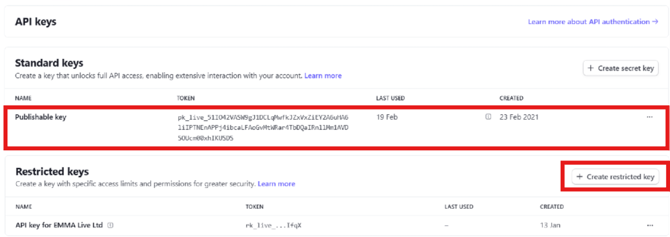
- Click on the long key to copy the Publishable (Live) key
- Now paste it into the 'Stripe Publishable Key' field in Smart Galas.
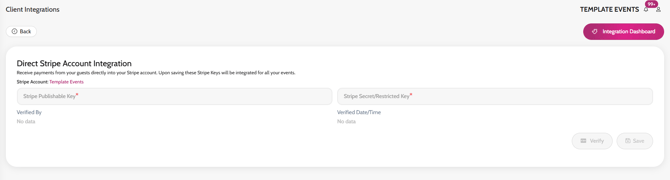
Then, click on the Create Restricted Key button on the right of the screen
- Choose Providing this key to another website
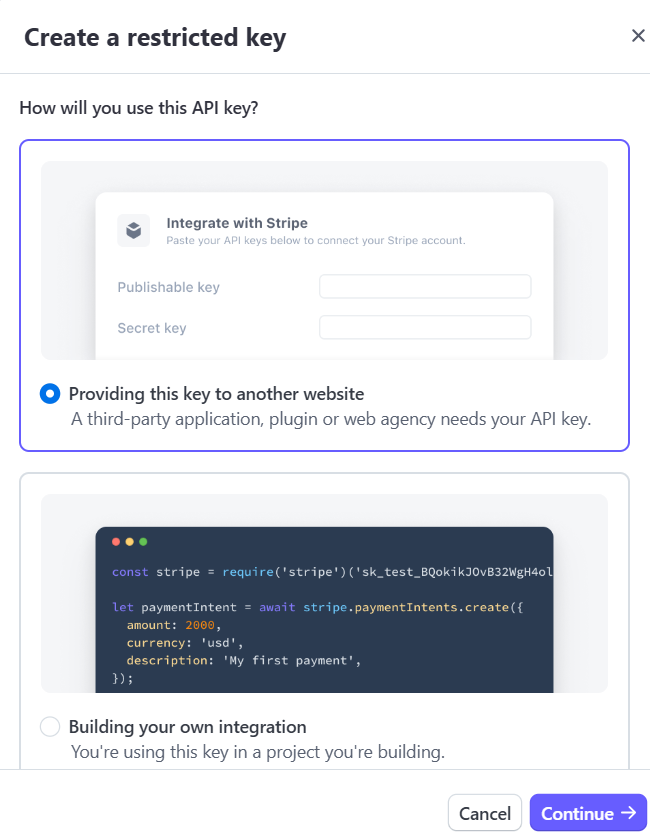
Add the Name as Smart Galas and the URL as app.smartgalas.com and click Create restricted key.
Copy the restricted key so you are ready to paste it into the Smart Galas field in a future step
*The restricted key can only be copied in full once when you create it.
You will now need to update the permissions for the restricted key from your Stripe Account.
- Click on the three dots ‘…’ next to the restricted key
- Click Edit key
- In the permissions column, change all the section headings with bold font and light grey/blue background to 'Write' e.g. Core (see screenshot below as an example) and Connect permissions must be 'Write' or 'Read'. If at CMS integration level more permissions will be required by Stripe this will be communicated by your Account Manager for necessary edits to be made.
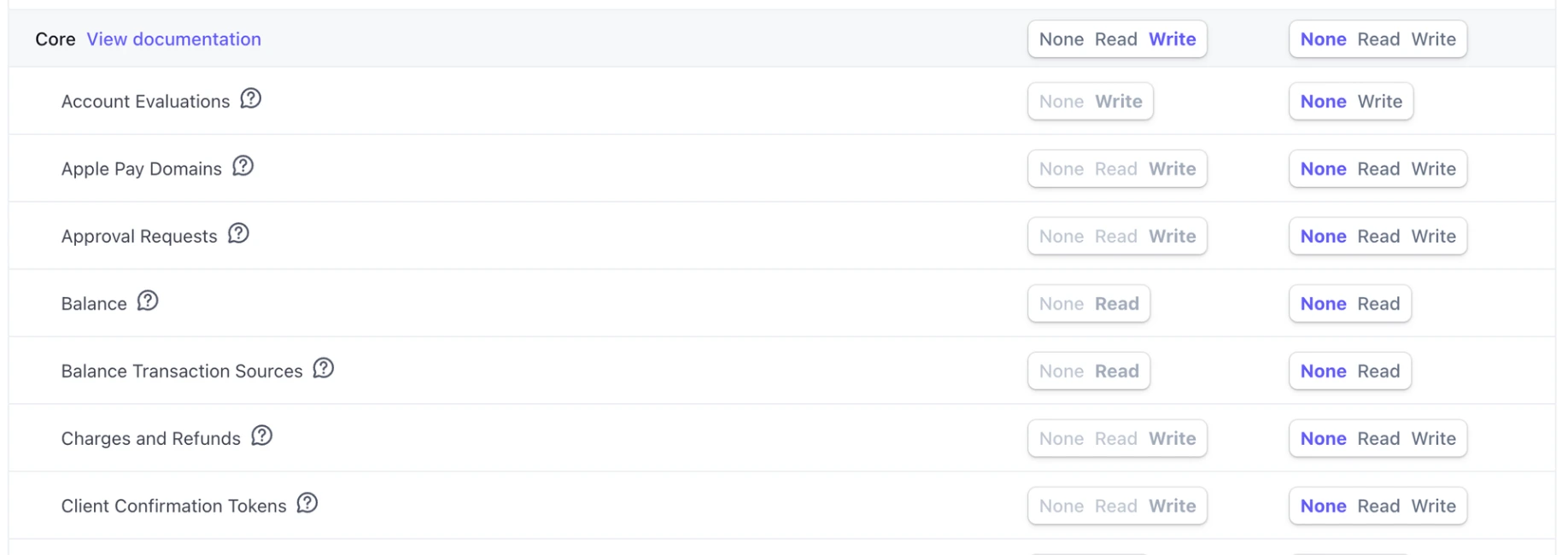
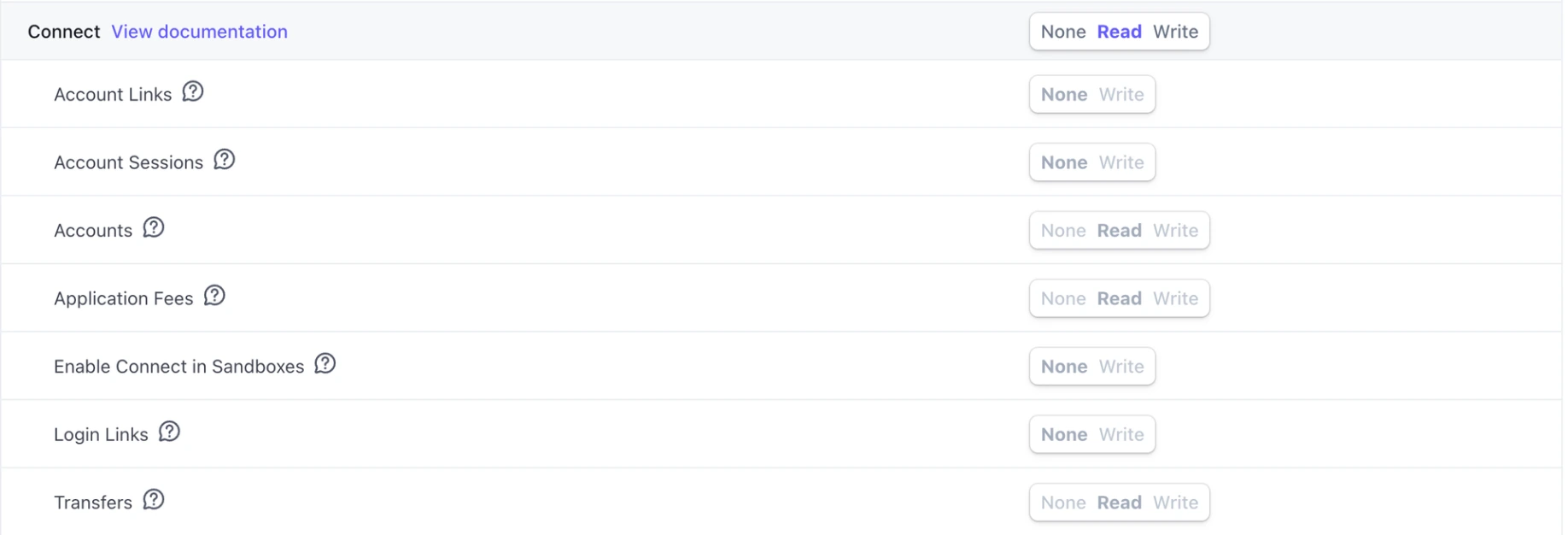
Note: These keys can only be used to receive funds so are not as sensitive as they appear. By updating the section header, all the additional rows in that section below it will also update automatically - saving you time!
- Click the apply changes red button.
Once the Restricted Key is edited, share the Publishable and Restricted Keys with your Smart Galas Account Manager and the necessary integration will be done by the Smart Galas team.