Marking invoice and offline payments as paid
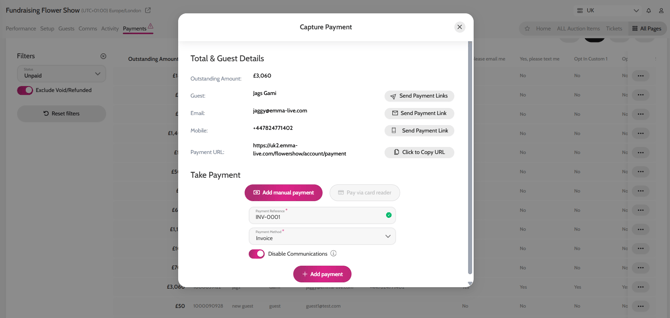
When you receive payment for auction items/pledges/tickets directly into your bank account because you enabled invoice payment or offline payments on your event, you can mark them paid on Smart Galas by following these steps.
- Go to Payments
Auction items:
- Click on Auction
- Filter by All Winning Bids (filter icon on the right)
- Select Status as Unpaid or search for the guest by name
- Click the three dots on the row of the guest’s name and click Pay
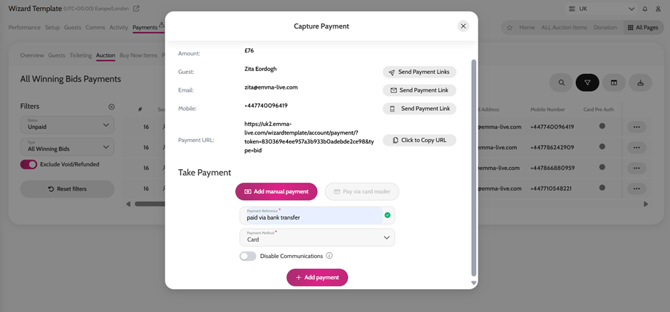
- Click Add Manual Payment
- Add in a Payment Reference (e.g. Paid by BACS) and select a Payment Method (toggle on disable communication if you would prefer the guest not be notified that their payment was confirmed)
- Click Add Payment
Marking Auction Items Paid
Pledges/Donations:
- Click on Pledges & Donations
- Select Status as Unpaid (filter icon on the right) or search for the guest by name
- Click the three dots on the row of the guest’s name and click Pay
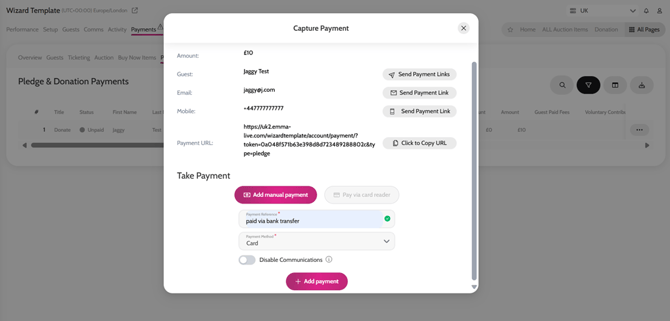
- Click Add Manual Payment
- Add in a Payment Reference (e.g. Paid by BACS) and select a Payment Method (toggle on disable communication if you would prefer the guest not be notified that their payment was confirmed)
- Click Add Payment
Marking Pledges Paid
Ticketing:
- Click on Ticketing
- Select Status as Unpaid (filter icon on the right) or search for the guest by name
- Click the three dots on the row of the guest’s name and click Pay
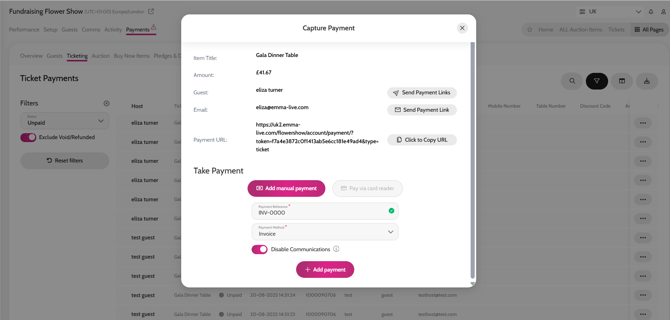
- Click Add Manual Payment
- Add in a Payment Reference (e.g. Paid by BACS) and select a Payment Method (toggle on disable communication if you would prefer the guest not be notified that their payment was confirmed)
- Click Add Payment
Marking tickets paid
ALL unpaid items at once per guest:
- Click on Guests
- Select Status as Unpaid (filter icon on the right) or search for the guest by name
- Click the three dots on the row of the guest’s name and click Pay
- Click Add Manual Payment
- Add in a Payment Reference (e.g. Paid by Bank Transfer, Paid by FPS) and select a Payment Method (toggle on disable communication if you would prefer the guest not be notified that their payment was confirmed)
- Click Add Payment
Marking ALL items paid at once for a guest