Creating a pledge/donation
To add a pledge or a donation to your event simply follow these steps.
- Go to All Pages > Donate
- Click on ‘Add pledge level
- Complete the necessary fields
- Click Add
You can set the minimum pledge, default pledge and minimum pledge increment for the ‘Amount of your choice’ field here.
Creating a new pledge/donation
Donations Page allows you to create separate Pledge Options (you can use this feature to create separate pledge pages for each fund / cause that you champion). Each Pledge page is a distinctive URL allowing your supporters to easily navigate to the fund they want to support.l
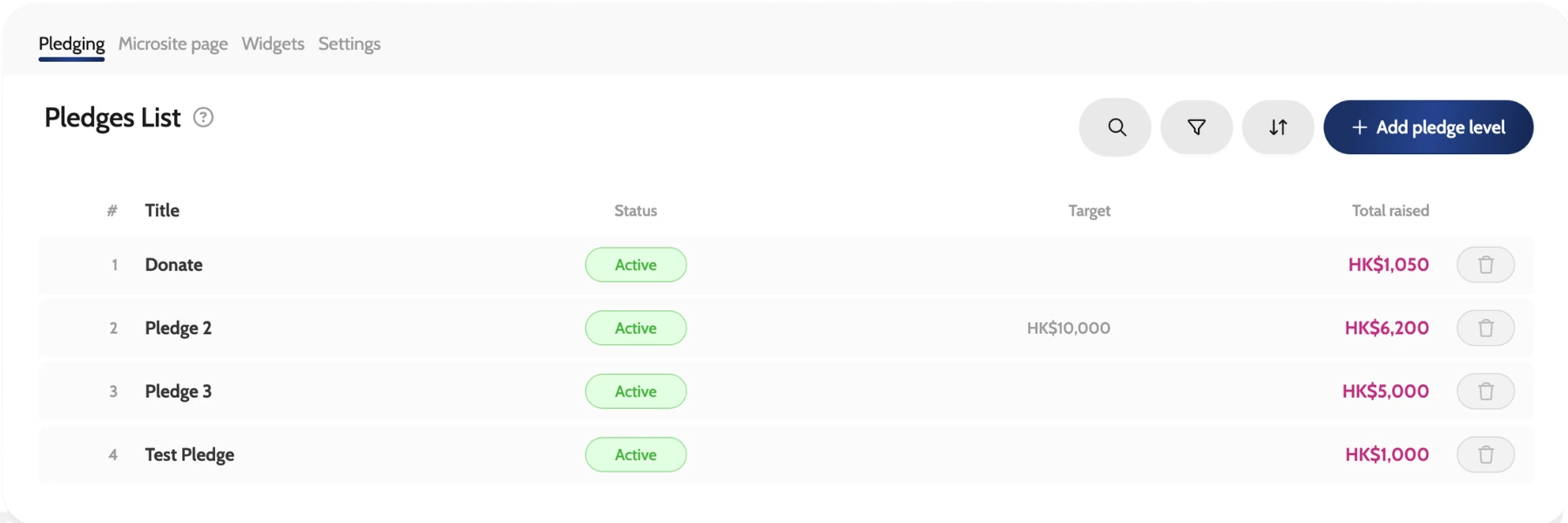
Under each Pledge you will find detailed configuration and options for settings, including the
- Main Information about the Pledge (such as title, status, start / end dates if limited to specific dates);
- Details of the Pledge (description and leaderboard message);
- Amount & Targets (minimum pledge, default pledge and minimum pledge increment);
- Preset amounts for faster and guided pledging;
- Image and video files to visually support the Pledge;
- Recurring pledges / donations settings;
- Detailed Pledge Settings (such as "Hide total raised", "Exclude Pledge From Totals", "Hide share button", "Allow Pledge Comments", "Show Pledge Comments", "Show on Checkout" (Event Ticketing Upselling feature - If enabled then you will enable guests to add a donation to their basket when buying event tickets), "Default Actions on Checkout" etc.;
- Activities by your supporters regarding the specific Pledge.
Other Settings (Microsite, Widgets, Settings)
Microsite Page settings allow you to customise the microsite Pledge / Donation page.
Widgets allow you to create a donation page embed code for your own website.
General Settings allow you to configure advanced details for your Pledge / Donation page and microsite UI.